Image Format Converter: The Ultimate Guide to WebP, PNG, JPEG, and AVIF
Images account for over 60% of the data downloaded on a typical web page. In an era where page load speed directly impacts search engine rankings (SEO), conversion rates, and user experience, choosing the right image format is no longer just a designer's concern—it is a critical technical decision. A reliable image format converter is an essential tool for modern web development, but to use it effectively, you need to understand the fundamental differences between today's dominant image formats.
The Big Four: JPEG, PNG, WebP, and AVIF
The web has evolved significantly from the days when GIF and JPEG were the only options. Today, four major formats dominate digital imaging:
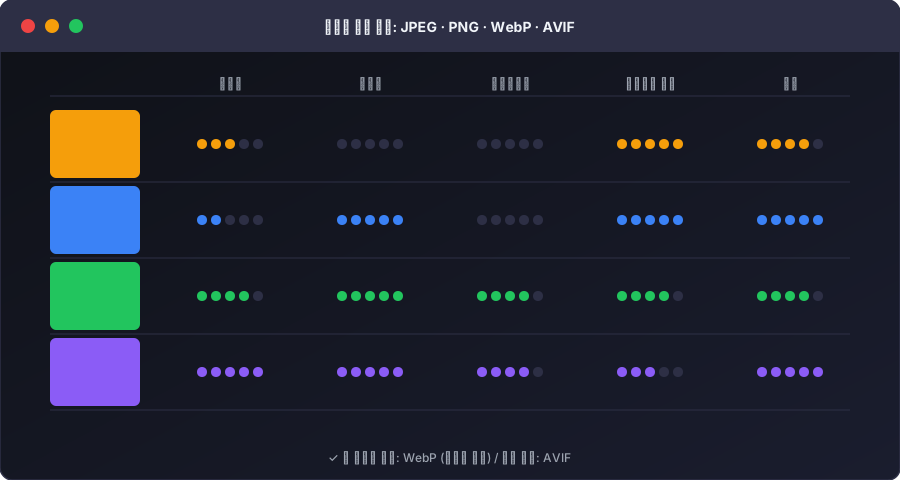
1. JPEG (Joint Photographic Experts Group)
Introduced in 1992, JPEG remains the undisputed king of digital photography.
- Best for: Photographs and images with complex color gradients.
- How it works: Uses "lossy" compression. It discards pixel data that the human eye cannot easily perceive to achieve tiny file sizes. Every time you save a JPEG, it loses quality (generation loss).
- Pros: Universally supported, excellent compression for photos.
- Cons: Does not support transparency (alpha channel), poor at handling sharp edges, text, or simple graphics (creates visible artifacts).
2. PNG (Portable Network Graphics)
Created as a patent-free alternative to GIF in the 1990s.
- Best for: Logos, icons, charts, illustrations, and images requiring transparency.
- How it works: Uses "lossless" compression. No data is discarded, ensuring the image remains perfectly crisp and sharp.
- Pros: Supports full alpha-channel transparency, perfect reproduction of sharp edges and text.
- Cons: File sizes are significantly larger than JPEG, especially for complex photographs.
3. WebP
Developed by Google in 2010 specifically for the web.
- Best for: Almost everything on the web today.
- How it works: Supports both lossy (like JPEG) and lossless (like PNG) compression, as well as transparency and animation.
- Pros: On average, WebP files are 26% smaller than PNGs and 25-34% smaller than comparable JPEGs. It combines the best features of both older formats.
- Cons: While supported by all modern browsers since 2020, very old browsers or native desktop image viewers may struggle with it.
4. AVIF (AV1 Image File Format)
The next-generation format derived from the AV1 video codec.
- Best for: Maximum compression on modern web platforms.
- How it works: Uses extremely advanced compression algorithms to achieve files significantly smaller than even WebP.
- Pros: Incredible quality-to-size ratio. Can be 50% smaller than JPEG with similar visual quality. Supports HDR (High Dynamic Range).
- Cons: Still lacks universal support across all platforms and software. Encoding (creating) the image takes significantly more processing power.
Why Converting Images is Critical for SEO and Performance
In 2021, Google introduced Core Web Vitals as a ranking factor, completely changing the SEO landscape. One of the most critical metrics is LCP (Largest Contentful Paint), which measures how long it takes for the largest element on the screen (usually a hero image) to load.
If your homepage features a 3MB PNG file as the hero banner, your LCP score will be poor, directly dragging down your search engine rankings and frustrating mobile users on slower connections.
By running that 3MB PNG through an image format converter:
- Converting PNG to Lossy WebP can reduce the file to 300KB (a 90% reduction) with almost no visible loss in quality.
- This drops your load time from 3 seconds to 300 milliseconds.
- Your Core Web Vitals score improves.
- Your search ranking goes up.
- Your bounce rate decreases because users are not waiting for content to render.
Common Conversion Scenarios
PNG to JPEG
When to do it: You have a large photograph saved as a PNG. Because PNG is lossless, a 1080p photo might be 5MB. Converting it to a high-quality JPEG will drop it to 500KB. When NOT to do it: If the image has a transparent background. JPEG does not support transparency, so the background will turn solid white or black.
JPEG to PNG
When to do it: You are editing a photo and want to save it multiple times without generation loss, or you need to add a transparent element. Warning: Converting a JPEG to a PNG will not restore the quality lost during the original JPEG compression. It will only make the file size larger.
Anything to WebP
When to do it: When preparing images for website deployment.
How to do it: Use the HTML <picture> element to serve WebP to modern browsers while providing a JPEG/PNG fallback for older browsers:
<picture>
  <source srcset="image.webp" type="image/webp">
  <img src="image.jpg" alt="Description">
</picture>
Vector vs. Raster: A Quick Note
This guide covers raster formats (built from a grid of pixels). Vector formats like SVG (Scalable Vector Graphics) are built using mathematical formulas. If you have a logo or simple icon, SVG is infinitely superior to PNG or WebP because it scales to any size without losing quality and usually has the smallest file size. You cannot effectively convert a photograph into an SVG.
Transform Your Images with UtiliZest
UtiliZest's Image Format Converter provides instant, professional-grade image conversion directly in your browser. Whether you need to convert a heavy PNG into a web-optimized WebP, strip transparency from a logo by converting it to JPEG, or modernize your assets, our tool handles it seamlessly.
Because the conversion happens entirely locally using your browser's processing power, your private photos and unreleased design assets are never uploaded to our servers, ensuring 100% privacy and lightning-fast results regardless of your internet connection speed.
Complete Image Format Comparison: WebP vs JPEG vs PNG vs AVIF
A data-driven comparison of everything web developers need to know about image formats in 2026.
| Feature | JPEG | PNG | WebP | AVIF |
|---|---|---|---|---|
| Compression | Lossy | Lossless | Both | Both |
| Avg file size | Baseline | +50% | -30% | -50% |
| Transparency | ❌ | ✅ | ✅ | ✅ |
| Animation | ❌ | ❌ | ✅ | ✅ |
| Browser support | All | All | 97%+ | 87%+ |
| Released | 1992 | 1996 | 2010 | 2019 |
Real File Size Comparison (Same Image)
Measured file sizes when the same photo is saved in each format (quality 80):
- JPEG: 420 KB (baseline)
- PNG: 1.2 MB (+186%)
- WebP (lossy): 290 KB (-31%)
- WebP (lossless): 650 KB (+55%)
- AVIF: 210 KB (-50%)
Bottom line: WebP is currently the best practical choice for web optimization. AVIF offers superior compression but lacks broad legacy browser support. The recommended approach is to use WebP as your default and implement JPEG fallback for unsupported browsers using the <picture> tag:
<picture>
  <source srcset="image.avif" type="image/avif">
  <source srcset="image.webp" type="image/webp">
  <img src="image.jpg" alt="Description" loading="lazy">
</picture>