Why Image Optimization Matters in 2026
Images account for over 50% of the average web page's total size, making them the single most impactful factor in page load performance. According to Google's Core Web Vitals data, pages with properly optimized images load 2-3 times faster than those with unoptimized images, directly affecting user experience, bounce rates, and search engine rankings.
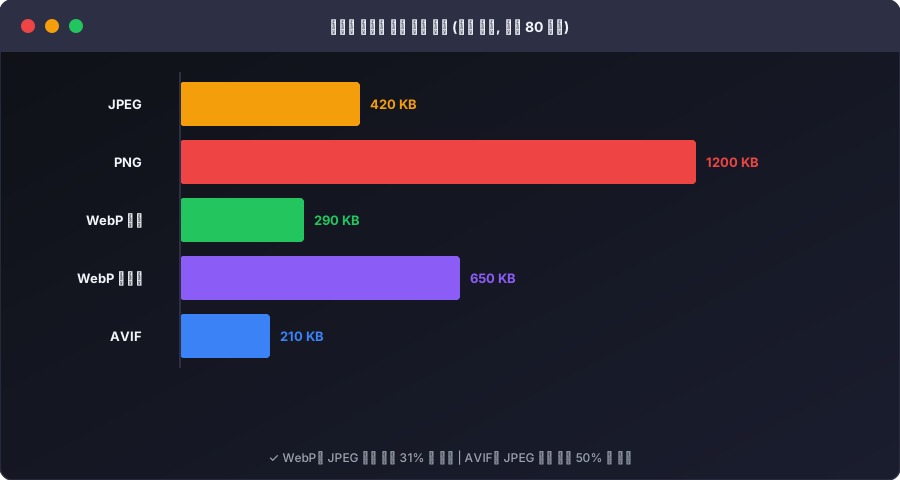
Google has explicitly stated that page speed is a ranking factor, and their Largest Contentful Paint (LCP) metric — which measures how quickly the largest content element (usually an image) loads — is a core component of the ranking algorithm. Images that are not properly sized and compressed can push your LCP above the 2.5-second threshold, resulting in lower search visibility.
Beyond SEO, image optimization has direct business impact. Amazon found that every 100ms of additional load time costs them 1% in sales. For social media, platforms like Instagram, Facebook, and Twitter automatically compress uploaded images, often resulting in visible quality loss. By pre-optimizing your images to the platform's recommended dimensions and format, you maintain visual quality while ensuring fast uploads.
Understanding Image Formats: JPEG vs. PNG vs. WebP
Choosing the right image format is the first step in optimization. Each format has distinct characteristics suited for different types of content:
JPEG (Joint Photographic Experts Group) is the best choice for photographs and complex images with many colors and gradients. JPEG uses lossy compression, meaning it achieves smaller file sizes by discarding some visual information that the human eye barely notices. Quality settings typically range from 0 to 100, with 75-85 being the sweet spot where file size is significantly reduced while maintaining perceptually identical quality. JPEG does not support transparency.
PNG (Portable Network Graphics) is ideal for images that require sharp edges, text, transparency, or limited colors — such as logos, icons, screenshots, and diagrams. PNG uses lossless compression, preserving every pixel exactly. This makes PNG files larger than JPEGs for photographs, but ensures no quality loss for graphics. PNG-8 supports up to 256 colors with transparency, while PNG-24 supports millions of colors with full alpha transparency.
WebP is Google's modern image format that provides superior compression for both lossy and lossless content. WebP images are typically 25-35% smaller than equivalent JPEG images at the same visual quality, and significantly smaller than PNG for lossless content. WebP supports transparency and animation, making it a versatile replacement for both JPEG and PNG. Browser support for WebP is now over 97% globally, making it safe for production use.
AVIF (AV1 Image File Format) is the newest format, offering even better compression than WebP — typically 20-30% smaller. However, browser support (around 93%) and encoding speed are still catching up. AVIF is the future, but WebP is the safe present-day choice.
How Image Resizing Works
Image resizing involves changing the pixel dimensions of an image, which fundamentally affects both file size and visual quality. Understanding the underlying process helps you make better decisions:
Downsampling (making images smaller) reduces the number of pixels, which directly reduces file size. The algorithm must decide which pixels to keep and which to discard, using mathematical interpolation methods. Bilinear interpolation averages neighboring pixels for smooth results; bicubic interpolation considers more surrounding pixels for even smoother gradients; and Lanczos resampling produces the sharpest results for photographic content.
Upsampling (making images larger) adds new pixels that did not exist in the original image. The algorithm must "guess" what the new pixels should look like based on surrounding pixel values. This inherently reduces image sharpness and can introduce visible artifacts. As a general rule, you should avoid upscaling images whenever possible — start with the highest resolution source available.
Aspect ratio is the proportional relationship between width and height. Maintaining the original aspect ratio prevents distortion (stretching or squishing). When only one dimension is specified, the other should be calculated automatically to preserve the aspect ratio. Common aspect ratios include 16:9 (widescreen), 4:3 (traditional), 1:1 (square), and 3:2 (DSLR photos).
Recommended Image Sizes for Common Use Cases
Web performance best practices dictate specific size guidelines for different contexts:
Hero images and banner images should generally be 1920×1080 pixels maximum. For responsive designs, consider providing multiple sizes (640px, 1024px, 1920px) and using the HTML srcset attribute to serve the appropriate size based on the user's screen. The key insight is that a 4K image displayed in a 500px container wastes bandwidth loading pixels the user will never see.
Social media platforms each have optimal image dimensions. Instagram feed posts: 1080×1080px (square), 1080×1350px (portrait), or 1080×566px (landscape). Facebook shared images: 1200×630px. Twitter/X shared images: 1200×675px. LinkedIn shared images: 1200×627px. Using these exact dimensions prevents the platform from cropping or compressing your images in unexpected ways.
Product images for e-commerce typically need to be at least 1000×1000 pixels with a white or transparent background. This size enables zoom functionality while keeping file sizes manageable. Many platforms recommend 2000×2000px for high-DPI displays.
Email images should be kept under 600px wide (the maximum rendered width for most email clients) and total image size per email should stay under 200KB to avoid spam filters and ensure fast loading on mobile devices.
Thumbnails and avatars work best at 150×150px to 300×300px. These small images should be aggressively compressed since they are displayed at small sizes where quality differences are imperceptible.
Image Compression: Finding the Right Balance
Compression reduces file size by removing redundant or less important data. The challenge is finding the optimal balance between file size and visual quality:
Quality 90-100%: Near-lossless quality with minimal compression. Use only when pixel-perfect accuracy is essential (medical imaging, professional photography). File sizes remain large.
Quality 75-85%: The optimal range for most use cases. Achieves 60-80% file size reduction with negligible visual quality loss. Most viewers cannot distinguish between 100% and 80% quality at normal viewing distances.
Quality 50-70%: Noticeable quality reduction, especially in gradients and fine details. Suitable for thumbnails, background images, and contexts where file size is more important than visual fidelity.
Quality below 50%: Visible compression artifacts (blocking, banding, blurriness). Only suitable for very small thumbnails or preview images where loading speed is the primary concern.
A useful technique is progressive JPEG encoding, where the image loads as a blurry version first and progressively sharpens. This provides a better user experience than standard (baseline) JPEG encoding, where the image loads top-to-bottom in full quality.
Batch Processing and Workflow Tips
When optimizing multiple images, efficiency matters. Here are workflow tips:
Establish a naming convention that includes the image dimensions, such as hero-banner-1920x1080.webp or product-shoe-001-1000x1000.jpg. This makes it easy to identify image specifications at a glance.
Create presets for your most common use cases. If you regularly resize images for blog posts (800px wide), social media (1080px square), and product listings (1000×1000px), save these as reusable presets rather than manually entering dimensions each time.
Always keep the original high-resolution source files. You can always downsize from a large original, but you cannot upsize without quality loss. Store originals separately from optimized versions.
Consider using modern formats strategically. Serve WebP to supported browsers with JPEG fallbacks for the small percentage of browsers that do not support it. The HTML picture element makes this easy to implement.
Resize Your Images Now — Free and Private
UtiliZest's Image Resizer runs entirely in your browser using the HTML5 Canvas API. Your images are never uploaded to any server — all processing happens locally on your device, ensuring complete privacy even for confidential or sensitive images.
Upload your image via drag-and-drop or file picker, choose from preset sizes or enter custom dimensions, lock or unlock the aspect ratio, adjust the quality slider, select your output format (JPEG, PNG, or WebP), and download the optimized result instantly. No watermarks, no file size limits, and no registration required.
Image Format Selection Guide: When to Use What
The most important first decision in image optimization is format selection. Choosing the wrong format limits how much you can compress.
| Format | Best For | Transparency | Animation | Avg File Size |
|---|---|---|---|---|
| JPEG/JPG | Photos, landscapes, complex images | ❌ | ❌ | Baseline (100%) |
| PNG | Logos, icons, text-heavy images | ✅ | ❌ | +30–50% |
| WebP | All web images (photos + icons) | ✅ | ✅ | -25–35% |
| AVIF | High-quality images on modern browsers | ✅ | ✅ | -40–50% |
| SVG | Icons, logos, illustrations | ✅ | ✅ | Very small |
| GIF | Simple animations (legacy) | ✅ | ✅ | +200–500% |
The Direct Impact of Image Size on Web Performance
Google's LCP (Largest Contentful Paint) Core Web Vital is directly tied to image loading speed and affects search rankings.
- Converting to WebP reduces file size by 25–35% on average compared to JPEG
- Resizing images to appropriate dimensions eliminates unnecessary pixel computation, improving render speed by 10–40%
- Google PageSpeed Insights shows image optimization alone can raise performance scores by 15–25 points on average
Recommended Image Dimensions by Use Case
| Location | Recommended Width | Notes |
|---|---|---|
| Blog content | 800–1200px | ×2 for retina displays |
| Thumbnails | 400–600px | |
| Social media OG image | 1200×630px | Facebook & Twitter standard |
| Favicon | 32×32, 192×192, 512×512 | Multiple sizes required |
| Hero banner | Max 1920px | Separate mobile optimization recommended |