Markdown Editor: The Complete Guide to Writing and Previewing Markdown Online
Markdown has become the lingua franca of technical writing. Created by John Gruber in 2004, Markdown is a lightweight markup language that converts plain text into formatted HTML. It is used by GitHub for README files and issues, by Notion and Obsidian for note-taking, by Jekyll and Hugo for static site generation, by Stack Overflow for questions and answers, and by millions of developers worldwide for documentation. This guide covers everything you need to know about Markdown, from basic syntax to advanced formatting techniques.
What Is Markdown and Why Should You Use It?
Markdown is a plain-text formatting syntax designed to be both human-readable in its raw form and easily convertible to HTML. Unlike WYSIWYG editors where formatting is hidden behind toolbar buttons, Markdown uses intuitive text conventions that anyone can learn in minutes.
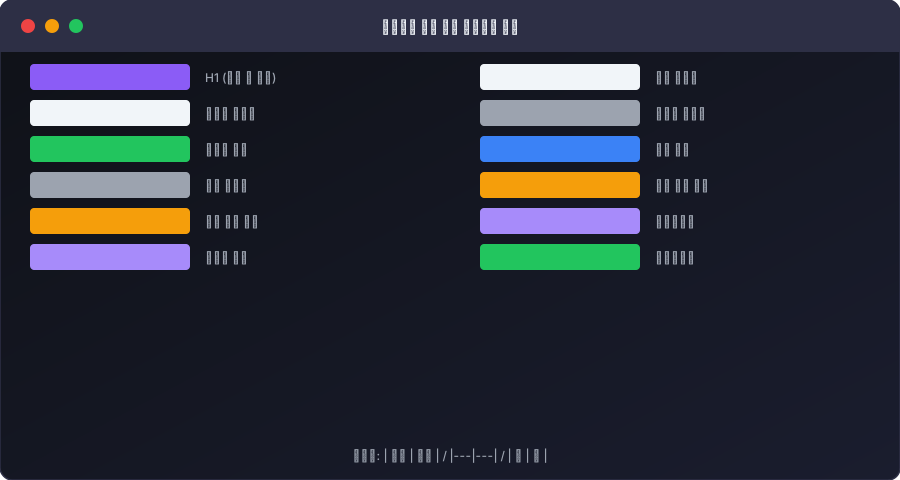
The key advantages of Markdown include portability (Markdown files are plain text that works on any operating system, editor, or platform), version control friendliness (since Markdown is text-based, it works perfectly with Git for tracking changes and collaborative editing), simplicity (the syntax is minimal and intuitive, reducing the cognitive overhead of writing), and future-proofing (plain text files never become obsolete, unlike proprietary document formats).
Essential Markdown Syntax
Headings
Headings are created using hash symbols. The number of hashes corresponds to the heading level:
# Heading 1
## Heading 2
### Heading 3
#### Heading 4
Best practice: Use a single H1 per document (the title), and maintain a logical hierarchy without skipping levels.
Text Formatting
Markdown provides several inline formatting options:
**Bold text** or __bold text__
*Italic text* or _italic text_
***Bold and italic*** or ___bold and italic___
~~Strikethrough text~~
`Inline code`
Links and Images
Creating hyperlinks and embedding images follows a clean, consistent syntax:
[Link text](https://example.com)
[Link with title](https://example.com "Title text")

Lists
Both ordered and unordered lists are straightforward:
- Item one
- Item two
  - Nested item
  - Another nested item

1. First item
2. Second item
3. Third item
Code Blocks
For developers, code blocks are essential. Markdown supports both inline code and fenced code blocks with syntax highlighting:
Inline: Use `const x = 42;` in your code.

Fenced block with language specification:
```javascript
function greet(name) {
  return `Hello, ${name}!`;
}
```
Specifying the language (javascript, python, css, etc.) enables syntax highlighting in most Markdown renderers.
Tables
Tables use pipes and hyphens to create structured data:
| Feature    | Markdown | HTML     |
|------------|----------|----------|
| Learning   | Easy     | Moderate |
| Readability| High     | Low      |
| File size  | Small    | Large    |
You can align columns using colons: :--- for left-aligned, :---: for centered, and ---: for right-aligned text.
Blockquotes
Blockquotes are created with the greater-than symbol and are perfect for highlighting important information:
> This is a blockquote.
> It can span multiple lines.
>
> And even contain multiple paragraphs.
GitHub Flavored Markdown (GFM)
GitHub extended standard Markdown with several features that have become industry standards:
Task lists allow you to create interactive checklists:
- [x] Completed task
- [ ] Pending task
- [ ] Another pending task
Autolinked references automatically create links to issues, pull requests, and commits when you type #123, @username, or commit SHAs.
Emoji shortcodes support adding emoji via text codes like :+1:, :rocket:, and :bug:.
Footnotes allow adding references without cluttering the main text:
Here is a statement[^1].

[^1]: This is the footnote content.
Markdown for Documentation Best Practices
Structure Your Documents Logically
Start with a clear title (H1), followed by a brief introduction, then organized sections (H2) with subsections (H3) as needed. Include a table of contents for long documents. Use horizontal rules (---) to visually separate major sections.
Write Descriptive Link Text
Avoid generic link text like "click here" or "read more." Instead, make the link text describe what the reader will find: [API authentication documentation](link) is far more useful and accessible than [click here](link).
Use Code Blocks Generously
When writing technical documentation, use inline code for file names, commands, function names, and variable names. Use fenced code blocks for any multi-line code examples, configuration files, or terminal commands. Always specify the language for syntax highlighting.
Keep Lines Reasonably Short
While Markdown renderers handle line wrapping automatically, keeping lines under 80-100 characters in the source makes files easier to review in version control diffs and display correctly in terminal-based editors.
Include Visual Elements
Break up walls of text with images, diagrams, tables, and code examples. Visual elements improve comprehension and make documentation more scannable. Use Mermaid diagrams for flowcharts and sequence diagrams when supported by your platform.
Markdown vs. Other Markup Languages
Markdown vs. HTML: Markdown is dramatically simpler and more readable in its raw form. Use Markdown for content authoring and let tools convert it to HTML. Use raw HTML only when Markdown does not support a specific formatting need.
Markdown vs. reStructuredText: reStructuredText (used by Python's Sphinx documentation system) is more powerful but has a steeper learning curve. Markdown is sufficient for most documentation needs and has broader tool support.
Markdown vs. AsciiDoc: AsciiDoc supports more complex document structures (nested tables, conditionals, includes) and is preferred for large-scale technical documentation. Markdown wins on simplicity and ecosystem support.
Markdown vs. LaTeX: LaTeX excels at mathematical typesetting and academic papers. For web-focused technical documentation, Markdown is far simpler. Many platforms support LaTeX math notation within Markdown using $...$ syntax.
Common Markdown Mistakes to Avoid
Missing blank lines: Markdown requires blank lines before and after headings, code blocks, lists, and blockquotes. Forgetting these blank lines often causes rendering issues.
Inconsistent list markers: Mixing *, -, and + for unordered lists within the same document creates visual inconsistency. Pick one marker and stick with it throughout your document.
Unescaped special characters: Characters like *, _, #, and [ have special meaning in Markdown. If you want to display them literally, escape them with a backslash: \*not italic\*.
Overly deep nesting: Deeply nested lists and blockquotes become hard to read and maintain. If you need more than 3 levels of nesting, consider restructuring your content.
Write and Preview Markdown Instantly with UtiliZest
UtiliZest's Markdown Editor provides a side-by-side live preview experience that lets you write Markdown on the left and see the rendered HTML output on the right in real-time. The editor supports full GitHub Flavored Markdown including tables, task lists, code blocks with syntax highlighting, and more.
Everything runs in your browser with zero data sent to servers. No signup required, completely free, and designed for developer productivity. Whether you are writing README files, documentation, blog posts, or notes, our editor makes the Markdown authoring experience seamless and efficient.
Complete Markdown Syntax Reference
A definitive reference so you never have to search for Markdown syntax again.
Text Formatting
| Syntax | Result | Example |
|---|---|---|
**text** | bold | **important** → important |
*text* | italic | *note* → note |
~~text~~ | ~~deleted~~ | |
`code` | inline code | `const x = 1` |
> text | blockquote | > Quote here |
Headings (H1–H6)
# H1 Heading (largest)
## H2 Heading
### H3 Heading
#### H4 Heading
##### H5 Heading
###### H6 Heading (smallest)
Links and Images
[Link text](https://url.com) # Basic link
[Link text](https://url.com "Tooltip text") # Link with tooltip
 # Embed image
[](linkURL) # Clickable image
Tables
| Header1 | Header2 | Header3 |
|---------|---------|---------|
| Cell1   | Cell2   | Cell3   |
| Left    | Center  | Right   |

Alignment:
|:--------|:-------:|--------:|   # Left, Center, Right alignment
Code Blocks
```javascript
const greeting = 'Hello, World!';
console.log(greeting);
```
Task Lists (GitHub Flavored Markdown)
- [x] Completed item
- [ ] Incomplete item
- [x] Deployment done
Major Platforms Supporting Markdown
- GitHub / GitLab: README, Issues, Pull Request comments
- Notion: All text blocks
- Obsidian / Typora: Local note-taking apps
- VS Code: Built-in preview
- Discord / Slack: Partial syntax support
- Stack Overflow: Questions and answers